What Is the Best App for Editing Clothing Photos? A Complete Guide for Fashion-Perfect Images
A great clothing photograph does more than show a product. It communicates the quality of the fabric, the accuracy of its color, the shape of the garment, and the overall style of a fashion brand. Whether you sell clothing through an online store, manage a fashion business, design apparel, or create content for social media, the way your clothes appear in photographs can influence how people perceive your products.
However, even a carefully planned photoshoot can produce images that need improvement. Uneven lighting may make a black shirt look gray. Wrinkles can distract from a dress’s natural shape. A busy background may compete with the garment, while inaccurate colors can create a difference between the product photograph and the item customers receive.
This is where a clothing photo editor becomes useful.
The right fashion photo editing app can help you remove unwanted backgrounds, correct exposure, improve fabric details, smooth distracting wrinkles, adjust clothing colors, and prepare product images for different online platforms. Some applications are designed for quick smartphone edits, while professional desktop software offers greater control over complex retouching and large image collections.
So, what is the best app for editing clothing photos?
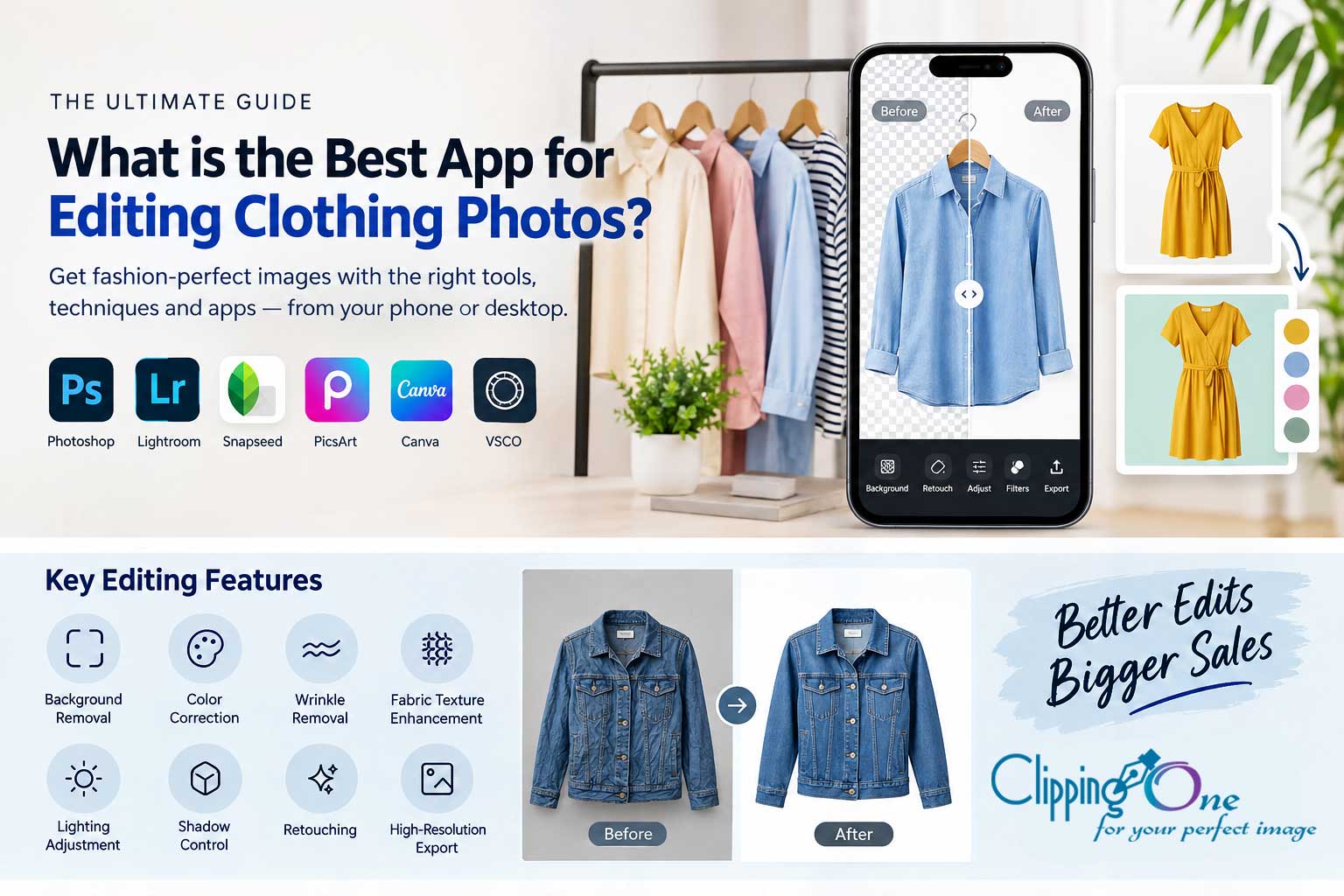
For professional, detailed editing, Adobe Photoshop is an excellent all-around choice. Adobe Lightroom is particularly useful for color correction and processing large batches of fashion images. Snapseed offers a practical free option for mobile editing, while Canva and dedicated background-removal tools can simplify product image preparation. For professional e-commerce catalogs, the best workflow may combine several tools or include a specialized image-editing service.
The ideal choice depends on your budget, technical experience, image volume, and final use.
In this guide, we compare popular clothing photo editing apps, explain their most useful features, and show you how to create polished fashion images for online stores, marketplaces, catalogs, and social media.
Key Features to Look For in a Clothing Photo Editing App
Not every photo editor is equally suitable for fashion photography. A basic filter app might improve brightness and contrast, but it may not provide the precision required to prepare hundreds of clothing product images.
Before choosing an app, consider the following features.
1. Background Removal and Replacement
A clean background helps customers focus on the garment. For e-commerce product photography, sellers often use white or light neutral backgrounds to maintain a consistent catalog appearance.
Look for tools that can:
- Remove backgrounds around sleeves, collars, straps, and loose fabric.
- Preserve fine details such as lace, fringe, and transparent materials.
- Replace distracting backgrounds with white, gray, or brand-approved colors.
- Create transparent PNG files when needed.
- Maintain natural edges without cutting away parts of the clothing.
Automated background removal can save time, but detailed garments may still require manual masking and edge refinement.
2. Accurate Color Correction for Clothing
Color accuracy is especially important when selling fashion products online. Customers expect a navy jacket to look navy, an ivory blouse to look ivory, and a burgundy dress to retain its intended tone.
A useful clothing photo editor should provide white balance, exposure, temperature, tint, saturation, and selective color adjustments.
These controls help correct lighting inconsistencies while preserving the garment’s original appearance.
Avoid excessive saturation or dramatic filters on product photographs. An attractive image is not necessarily an accurate product image.
3. Wrinkle Removal and Fabric Retouching
Clothing naturally develops folds during storage, transport, and photography. Some folds communicate the fabric’s texture and natural shape, while others distract from the product.
Look for healing brushes, clone tools, frequency separation workflows, or AI-assisted retouching features that help reduce unwanted creases without making fabric look artificial.
The goal is to improve presentation while preserving realistic stitching, seams, weave, and material characteristics.
4. Lighting and Shadow Control
Uneven lighting can hide garment details or create unwanted color casts. Exposure and highlight controls help recover detail, while shadow adjustments can reveal information in darker areas.
For product photography, shadows should also look intentional. A subtle contact shadow can make a shirt or pair of shoes appear grounded rather than unnaturally floating against a white background.
5. High-Resolution Export and Batch Processing
If you edit clothing photos for a business, export quality and productivity matter.
Prioritize applications that support your required image dimensions, color profiles, file formats, and output quality. Batch processing is particularly valuable when a catalog contains hundreds of similar photographs.
For a professional workflow, the app should also help maintain consistent brightness, white balance, cropping, and background appearance across the entire collection.
Best Apps for Editing Clothing Photos on Smartphones (iOS and Android)
Mobile applications are convenient for boutique owners, influencers, independent designers, and online sellers who need to edit photographs without opening a desktop computer.
The following options cover different editing needs. Availability, subscription costs, and individual features can vary by platform and plan.
| App | Best for | Main strengths |
|---|---|---|
| Lightroom Mobile | Color and lighting | Exposure, white balance, presets |
| Snapseed | Free manual editing | Selective adjustments, healing, detail controls |
| VSCO | Fashion and lifestyle content | Creative color grading and filters |
| Picsart | Creative clothing visuals | Background editing, effects, graphic elements |
| AirBrush | Portrait and fashion retouching | Skin and portrait-focused enhancement |
| Polish | Quick social media edits | Filters, basic retouching, creative effects |
Lightroom Mobile: Best for Color Correction
Adobe Lightroom Mobile is a strong option for creators who want consistent, professional-looking clothing photos.
Its adjustment tools help balance exposure, recover highlights, control shadows, and fine-tune colors. Selective editing also makes it possible to adjust certain areas without changing the entire image equally.
For example, imagine photographing a collection of ten T-shirts in slightly different lighting conditions. You can establish a preferred color treatment, apply suitable adjustments across the collection, and refine individual photographs where necessary.
Lightroom is particularly helpful for:
- Correcting white balance.
- Improving fabric visibility.
- Matching the overall look of a clothing collection.
- Preparing fashion photographs for websites and social media.
However, Lightroom is not a complete replacement for Photoshop when you need detailed garment reconstruction, precise masking, or complex object removal.
Best for: Fashion creators and online sellers who prioritize consistent colors and lighting.
Snapseed: Best Free Clothing Photo Editor
Snapseed is a practical option for people who want to improve clothing photographs without committing to a paid editing subscription.
Its editing tools include exposure and color adjustments, selective control points, healing, cropping, and detail enhancement. These features can help improve everyday clothing photographs taken with a smartphone.
For example, you might brighten an underexposed sweater, correct a slightly warm background, remove a small distraction, and crop the photograph for an Instagram post.
Snapseed works well for straightforward edits, although intricate background removal and advanced commercial retouching may require other software.
Best for: Beginners, budget-conscious sellers, and casual fashion photography.
VSCO: Best for Fashion and Lifestyle Aesthetics
VSCO is useful when the goal is to create a consistent visual identity rather than a strictly neutral product catalog.
Its creative color treatments can help fashion influencers and lifestyle brands develop a recognizable look across outfit photographs, editorial images, and social media posts.
The important distinction is that creative styling and product accuracy are different objectives. A strong color filter may be appropriate for a fashion campaign but unsuitable for a product listing where customers need to judge the garment’s actual color.
Best for: Fashion influencers, lookbooks, and lifestyle content.
Picsart: Best for Creative Clothing Edits
Picsart offers creative editing tools that can be useful for promotional images, fashion collages, and social media graphics.
Depending on the available tools and plan, you can combine background editing, text, visual effects, and other design elements to create attention-grabbing fashion content.
It is particularly helpful when you want to turn a clothing photograph into a promotional post rather than simply correct the original image.
For marketplace product photography, use decorative effects carefully. Unnecessary graphics can make a product image less suitable for the platform’s listing requirements.
Best for: Boutique promotions, fashion advertisements, and creative product presentations.
AirBrush and Polish: Best for Quick Fashion Content
AirBrush focuses on portrait and appearance retouching, making it useful for model photographs that require subtle skin cleanup and overall presentation improvements.
Polish is another option for users seeking straightforward photo adjustments and creative effects for social media.
Both are better suited to relatively quick edits than to complex, high-volume product catalog workflows. Before using appearance-enhancement tools on a model, make sure they do not distort the garment or alter its fit unintentionally.
Best for: Social media creators and users who need convenient, simple edits.
Top Desktop Apps for Professional Clothing Photo Editing
Mobile apps are convenient, but desktop software generally offers more precision for professional product photography, detailed retouching, and large commercial projects.
Adobe Photoshop: Best Overall for Detailed Clothing Photo Editing
Adobe Photoshop is an excellent choice when you need precise control over individual pixels, garment edges, fabric texture, and background details.
Its selection and masking tools allow editors to isolate clothing from complicated backgrounds. Layers and adjustment layers support reversible edits, while healing, cloning, and other retouching tools help remove unwanted distractions.
Photoshop is especially useful for:
- Removing backgrounds from difficult garments.
- Retouching wrinkles while preserving fabric texture.
- Correcting specific clothing colors.
- Removing lint, dust, and small imperfections.
- Refining product shadows.
- Creating consistent catalog images.
- Combining multiple photographs for approved creative compositions.
Consider a photograph of a black leather jacket. The original image might contain lint, uneven reflections, and a cluttered background. Photoshop gives an editor the control needed to clean the garment, balance its highlights, refine the edges, and create a polished final image.
The main disadvantage is that advanced editing requires practice. Photoshop can also be time-consuming when every image needs extensive manual work.
Best for: Professional retouchers, fashion brands, and e-commerce teams that need detailed control.
Adobe Lightroom Classic: Best for Large Photo Collections
Lightroom Classic is designed for organizing, adjusting, and processing photographic collections efficiently.
It is useful when a fashion shoot produces hundreds of images with similar lighting and camera settings. You can establish a consistent editing style, synchronize suitable adjustments, and export multiple photographs with standardized settings.
For clothing brands, this helps maintain a consistent visual appearance across product categories.
However, batch adjustments are not a substitute for individual retouching. A wrinkle on one shirt or a distracting object near a sleeve may still require separate attention.
Best for: Fashion photographers and businesses processing large numbers of similar images.
Affinity Photo: Best for Detailed Editing Without a Traditional Subscription
Affinity Photo is another option for detailed image manipulation, layer-based editing, masking, and retouching.
It may appeal to editors who prefer a desktop-focused workflow and want an alternative to subscription-based software. Check the current product version, licensing conditions, and available features before choosing it for a long-term production workflow.
Best for: Independent retouchers and designers seeking powerful desktop editing tools.
Capture One: Best for Professional Fashion Photography Workflows
Capture One is well suited to photographers who need careful color management, tethered shooting, and consistent processing during commercial photo sessions.
Its color controls can be particularly valuable when photographing multiple clothing colors under controlled studio lighting.
For example, a fashion photographer can review images during a shoot, evaluate the appearance of fabrics, and make adjustments before the entire collection is photographed.
Complex background replacement and detailed pixel-level cleanup may still require a dedicated retouching application.
Best for: Fashion studios, commercial photographers, and controlled studio workflows.
Which Desktop App Should You Choose?
The best choice depends on the work involved.
- Choose Photoshop for detailed retouching and background manipulation.
- Choose Lightroom Classic for efficient batch color correction and photo organization.
- Choose Affinity Photo for layer-based editing and detailed retouching.
- Choose Capture One for professional capture workflows and color-focused studio production.
For many professional teams, the most efficient solution is a combination of capture software, batch adjustment tools, and a detailed retouching application.
Apps for Removing and Changing Backgrounds in Clothing Photos
Background removal is one of the most common tasks in e-commerce clothing photography.
A clean background makes the garment easier to evaluate and helps a store present its products consistently. The best tool depends on whether you need a quick cutout, a transparent image, or a carefully refined commercial result.
Remove.bg and Similar Background-Removal Tools
Remove.bg is known for automated background removal. Tools in this category can quickly isolate a garment from its surroundings and are convenient for simple product photographs.
They are particularly useful when the background contrasts clearly with the clothing.
However, automatic tools may struggle with:
- Black garments photographed against dark backgrounds.
- White clothing photographed against pale walls.
- Fine lace and fringe.
- Semi-transparent fabrics.
- Loose hair around models.
- Thin straps and complex garment edges.
For important product listings, inspect the cutout carefully before publishing.
Canva Background Remover
Canva combines design tools with background removal on supported plans and workflows.
It is useful when you want to remove a background and then place the clothing image into a promotional design, social media graphic, or product announcement.
For example, a boutique could isolate a dress, place it against a brand-colored background, and add a campaign headline.
For marketplace listings, keep promotional graphics separate from the main product image when platform rules require clean product photography.
Photoshop Background Removal
Photoshop is a stronger option when an automated cutout needs manual refinement.
Its selection and masking workflow gives editors more control over sleeves, collars, thin fabric edges, and difficult contrasts.
The editor can also correct edge halos and refine shadows after the background is removed.
Practical tip: If you sell clothing online, create a consistent background style for each product category. A uniform white background, standardized crop, and consistent garment placement make a catalog easier to browse.
Apps That Help You Change or Adjust Clothing Colors and Patterns
Changing clothing colors in photographs can help fashion brands present available product variations without photographing every option separately. It is also useful for design previews, concept development, and creative campaigns.
However, changing the color of a garment in an existing photograph is not the same as accurately documenting a physical product.
How to Recolor Clothes in Photos
Photoshop is particularly useful for precise clothing color replacement because it allows editors to isolate the garment and adjust its hue, saturation, and luminosity.
A typical workflow includes:
- Select the garment carefully.
- Refine the selection around seams, buttons, and edges.
- Apply a selective color adjustment.
- Preserve shadows, highlights, and fabric texture.
- Inspect the result against the original photograph.
- Export the image with a clear record of the intended color variation.
This approach can transform a blue T-shirt into a green concept image while retaining much of its original texture and shading.
Lightroom can also adjust selected color ranges, although it is less suited to complex garment-specific transformations than a detailed layer-based workflow.
Can AI Change Clothing Colors and Patterns?
AI-powered editors can generate clothing variations, replace visual elements, or create fashion concepts from existing photographs.
These features can be useful for experimentation, but generated patterns may not follow the original garment’s seams or fabric structure accurately.
If you are preparing images for real product listings, use color-replacement methods that preserve the garment’s actual appearance. Do not present an AI-generated pattern or color as an existing product option unless the physical product genuinely matches it.
Best practice: Use AI-generated clothing variations for concept previews and clearly distinguish them from accurate product photography.
Retouching Clothes: Smoothing Wrinkles, Fixing Fit, and Enhancing Fabric
Retouching helps make clothing photographs look cleaner without removing the characteristics that make the garment believable.
The challenge is to improve the image without creating a misleading impression of the product.
How to Remove Wrinkles From Clothes in Photos
Photoshop offers several tools that can help reduce distracting wrinkles, including healing, cloning, frequency separation techniques, and careful tonal adjustments.
The right technique depends on the fabric.
- Cotton shirts: Reduce distracting creases while preserving natural folds.
- Silk dresses: Protect highlights and delicate fabric details.
- Denim jackets: Retain stitching, texture, seams, and natural wear.
- Wool sweaters: Preserve the knit structure rather than blurring it.
- Leather garments: Maintain realistic reflections and material characteristics.
A simple smoothing filter can make fabric look plastic. Professional retouching instead focuses on individual imperfections and preserves important texture.
Can Mobile Apps Smooth Clothing Wrinkles?
Some mobile editing apps offer healing, object-removal, or AI-assisted retouching features. These may be sufficient for small distractions in social media photographs.
For complex wrinkles, particularly those crossing seams or patterned fabric, desktop software usually offers better control.
If the original photograph contains deep folds that obscure the garment’s shape, a limited correction may be possible, but extensive reconstruction requires more careful editing.
Fixing Clothing Fit and Shape
Tools such as Photoshop’s Liquify feature can adjust selected areas of an image. They should be used cautiously.
Overcorrecting sleeves, waistlines, shoulders, or garment proportions can misrepresent the actual product. For e-commerce listings, retain the genuine fit and dimensions of the clothing.
For editorial or creative work, shape adjustments may be appropriate when they follow the project’s brief and do not create an unintended or deceptive result.
Enhancing Fabric Texture
Texture enhancement can help customers see stitching, woven patterns, knit details, and material quality.
Useful adjustments include selective sharpening, local contrast, and careful exposure correction.
Avoid applying sharpening uniformly at high intensity. Excessive sharpening can create halos around seams and make fabrics look rough or unnatural.
The objective is a clear, realistic photograph that communicates the product’s actual characteristics.
Best Apps for Editing Clothing Photos for Online Stores and Marketplaces
If you sell clothing through an online store or marketplace, the editing process should be designed around the requirements of the final platform.
A visually attractive photograph is important, but it must also be accurate, consistent, appropriately sized, and compliant with the relevant listing guidelines.
Editing Clothes for Amazon
Amazon sellers should review the current image requirements for their product category and marketplace.
A compliant main image commonly requires the product to appear clearly against a pure white background, without unnecessary promotional elements. Exact specifications can vary, so consult the current official guidelines before uploading.
Photoshop can help refine backgrounds and product edges, while Lightroom can standardize exposure and color across a collection.
Editing Clothes for eBay
eBay clothing sellers benefit from clear photographs that show the front, back, labels where relevant, fabric details, and any important imperfections.
A background-removal tool can create cleaner product images, but accurate presentation matters more than excessive retouching.
For secondhand clothing, do not remove stains, holes, or wear that buyers should know about.
Editing Clothes for Etsy
Etsy sellers often need a mixture of product photographs, lifestyle images, detail shots, and branded graphics.
Lightroom is useful for consistent color correction, Photoshop for detailed cleanup, and Canva for supporting promotional designs.
Keep listing photographs faithful to the actual product, particularly when presenting handmade garments, custom designs, or physical variations.
Editing Clothing Photos for Shopify and Independent Stores
An independent store gives you greater control over the overall visual presentation, but consistency remains essential.
Use the same crop, background treatment, garment scale, and lighting style across product categories. Optimize images for visual quality and page performance, and verify that product images display correctly on mobile devices.
For larger collections, batch processing can save significant time.
Recommended E-Commerce Clothing Editing Workflow
| Task | Recommended tool | Main purpose |
|---|---|---|
| Batch color correction | Lightroom Classic or Lightroom Mobile | Consistent lighting and color |
| Background removal | Photoshop or a background-removal tool | Clean product presentation |
| Detailed retouching | Photoshop or Affinity Photo | Remove distractions and refine details |
| Promotional graphics | Canva or Picsart | Marketing and social content |
| Bulk export | Lightroom Classic or a suitable batch workflow | Standardized file delivery |
No single application is necessarily best at every stage. The strongest workflow uses the appropriate tool for each task and checks the final images against the requirements of the sales platform.
AI-Powered Apps for Virtual Try-On and Outfit Editing
Artificial intelligence is changing how people experiment with clothing photographs.
AI clothing editors and virtual try-on tools may help users preview outfits, visualize styling combinations, or generate fashion concepts without photographing every possible combination.
However, AI-generated previews and accurate product images serve different purposes.
What Is an AI Clothing Editor?
An AI clothing editor uses automated image analysis or generative models to change selected parts of an image.
Depending on the application, these tools may help with:
- Virtual outfit previews.
- Clothing replacement in photographs.
- Fashion concept visualization.
- Background generation.
- Product image cleanup.
- Styling and wardrobe experimentation.
Some applications focus on personal photos, while others are designed for fashion retailers or creative production teams.
Can You Swap Clothes in Pictures?
Certain AI tools can generate a preview of a person wearing a different outfit. The quality depends on the source image, the clothing style, the model, and the application’s capabilities.
Results may contain incorrect seams, distorted hands, inconsistent shadows, or fabric details that do not match a real garment.
For personal styling, these limitations may be acceptable. For a commercial product page, they can create problems if the generated garment differs from the item being sold.
Is AI Virtual Try-On Useful for Fashion E-Commerce?
It can be useful when shoppers want to visualize styling possibilities or see how clothing might appear on different models.
Retailers should assess image accuracy, consent, privacy, representation, and disclosure requirements before introducing these features.
AI should complement accurate product photography rather than replace essential information about color, construction, fabric, and fit.
For conventional product listings, careful editing of real photographs remains an important foundation.
Free vs. Paid Clothing Photo Editing Apps: What’s Worth Paying For?
The right choice depends on your editing workload and the quality you need.
When a Free App Is Enough
A free clothing photo editor may be sufficient if you:
- Sell a small number of products.
- Edit personal outfit photographs.
- Need basic brightness and color adjustments.
- Create occasional social media posts.
- Do not require advanced masking or batch processing.
Snapseed is a useful starting point for basic mobile editing. Free plans and free trials of other applications may also provide enough functionality for a small project.
Always check current feature restrictions, export limitations, and usage terms.
When Paid Software Makes Sense
Paid software becomes more attractive when your work requires detailed retouching, precise masking, repeatable batch workflows, or professional color management.
A subscription or paid license may be worthwhile if it saves enough editing time or improves consistency across commercial projects.
Compare the total cost, not just the advertised monthly price. Consider training time, storage, add-ons, export limits, and the number of people who need access.
A Simple Decision Guide
| Your situation | A sensible starting point |
|---|---|
| Personal outfit photos | Snapseed or another basic mobile editor |
| Fashion influencer content | Lightroom Mobile or VSCO |
| Small online clothing shop | Lightroom plus a background-removal tool |
| Professional product retouching | Photoshop |
| Large catalog photo batches | Lightroom Classic plus detailed retouching tools |
| AI outfit concepts | A suitable virtual try-on or AI fashion tool |
There is no need to purchase several subscriptions immediately. Start with the tool that solves your biggest problem, then expand your workflow when the workload justifies it.
How to Choose the Best App for Editing Clothing Photos for Your Needs
Before selecting an app, identify what you actually need to accomplish.
For Fashion Influencers
Prioritize convenience, attractive color treatments, portrait retouching, and social media export options.
Lightroom Mobile, VSCO, and Picsart are reasonable starting points. Choose an application that helps maintain a consistent visual style without requiring a complicated desktop workflow.
For Online Clothing Sellers
Prioritize accurate colors, clean backgrounds, natural garment details, and consistent image dimensions.
A simple mobile editor may be sufficient for a small inventory. For growing catalogs, consider Lightroom for batch adjustments and Photoshop or another detailed editor for more demanding retouching.
For Fashion Designers
Look for precise color controls, layer-based editing, selection tools, and the ability to prepare concept visuals.
Photoshop and Affinity Photo can be useful for adjusting garment colors and building design presentations. Specialized fashion design software may be more appropriate when you need technical garment development rather than photographic editing.
For Photography Studios
A studio may need tethered capture, organized file management, batch adjustments, detailed retouching, and reliable delivery workflows.
Capture One, Lightroom Classic, and Photoshop can serve different parts of the process.
When choosing software, also consider collaboration, file handoff, repeatability, and the time required to train editors.
For E-Commerce Businesses With Large Image Volumes
If you process hundreds or thousands of clothing images, the cost of editing time can become more important than the cost of the software.
Estimate the time required for background removal, color correction, retouching, quality checks, and exports. Then determine whether in-house editing, automation, outsourcing, or a combination of these approaches is most practical.
Step-by-Step Workflow: Editing Clothing Photos Like a Pro
Even the best app cannot fully compensate for poor photography or an inconsistent editing process. A structured workflow helps produce better images with less rework.
Step 1: Capture a Good Original Photograph
Start with clean clothing, suitable lighting, and a simple background.
Use a consistent camera position and garment arrangement. Avoid harsh reflections, deep unwanted shadows, and color-changing light sources.
Photograph the front, back, and relevant details where appropriate.
Step 2: Select and Organize Your Images
Remove duplicate or unusable shots, then organize the remaining files by product, color, and view.
Consistent file naming helps prevent errors when several products have similar appearances.
Step 3: Correct Exposure and White Balance
Open the photographs in Lightroom, Snapseed, or another editor with suitable adjustment controls.
Correct overall brightness, temperature, tint, highlights, and shadows. Compare the edited photograph with a reliable reference when color accuracy matters.
Step 4: Crop and Straighten the Garment
Create a consistent composition for the product category.
Ensure the garment is positioned appropriately within the frame, with sufficient space around the edges. Avoid cropping important details such as sleeves, hems, or accessories.
Step 5: Remove or Replace the Background
Use an automated tool for straightforward photographs or a more precise masking workflow for difficult edges.
Inspect collars, straps, transparent fabrics, lace, and loose fibers. Remove color halos and make sure the background is consistent with the intended listing style.
Step 6: Retouch Wrinkles and Small Distractions
Remove lint, dust, sensor spots, and distracting creases where appropriate.
Work carefully around seams, buttons, logos, and fabric patterns. Preserve natural folds and texture so the final image remains believable.
Step 7: Refine Clothing Color and Texture
Adjust the garment selectively when possible.
Enhance visibility without exaggerating the fabric’s appearance. If you need to show an actual color variant, verify the result against a reliable physical or color-managed reference.
Step 8: Add or Refine Shadows
For isolated product images, use subtle, realistic shadows where suitable.
Avoid shadows that obscure the garment or make the product appear to float. Match the shadow style across the collection.
Step 9: Review the Final Image
Zoom in to check edges, texture, and unwanted artifacts.
Then review the photograph at normal viewing size. Confirm that the garment’s shape, color, and important details remain accurate.
For commercial projects, a second quality-control review can help catch inconsistencies before delivery.
Step 10: Export for the Intended Platform
Choose the file format, dimensions, color profile, and compression settings required by the destination.
JPEG is commonly suitable for product photography, while PNG may be appropriate when transparency is required. Use the platform’s current image specifications rather than assuming every marketplace has identical requirements.
For social media, check how the image crops on mobile screens. For e-commerce, prioritize clear details, consistent dimensions, and efficient loading.
When Should You Use a Professional Clothing Photo Editing Service?
Editing apps are valuable, but they do not eliminate the time and expertise required for commercial-quality retouching.
If you have a small collection of products, handling the edits yourself may be practical. When the volume increases, however, editing can become a production bottleneck.
A professional image-editing service may be worth considering when you need:
- Background removal across large clothing catalogs.
- Consistent retouching across multiple product categories.
- Detailed wrinkle cleanup and fabric enhancement.
- Accurate color correction and product presentation.
- Batch processing with standardized output requirements.
- Reliable delivery during busy sales periods.
- A repeatable workflow without expanding your in-house editing team.
The decision is not simply about whether professional editing produces a better photograph. It is also about the time, staffing, quality control, and operational effort required to deliver a complete catalog.
How Clipping Path One Can Help With E-Commerce Clothing Images
Clipping Path One provides e-commerce image editing and photo post-production support for businesses that need consistent product photographs.
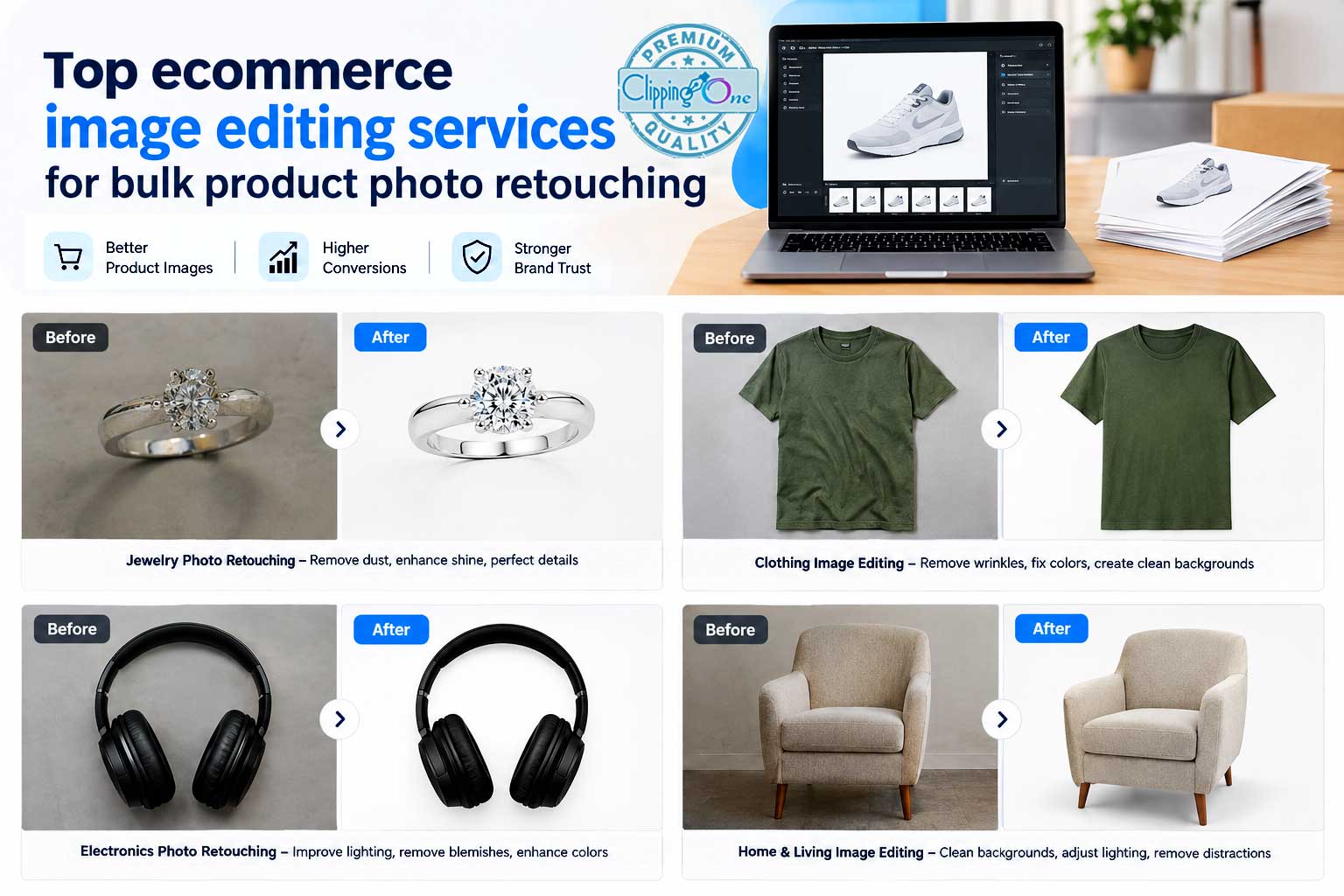
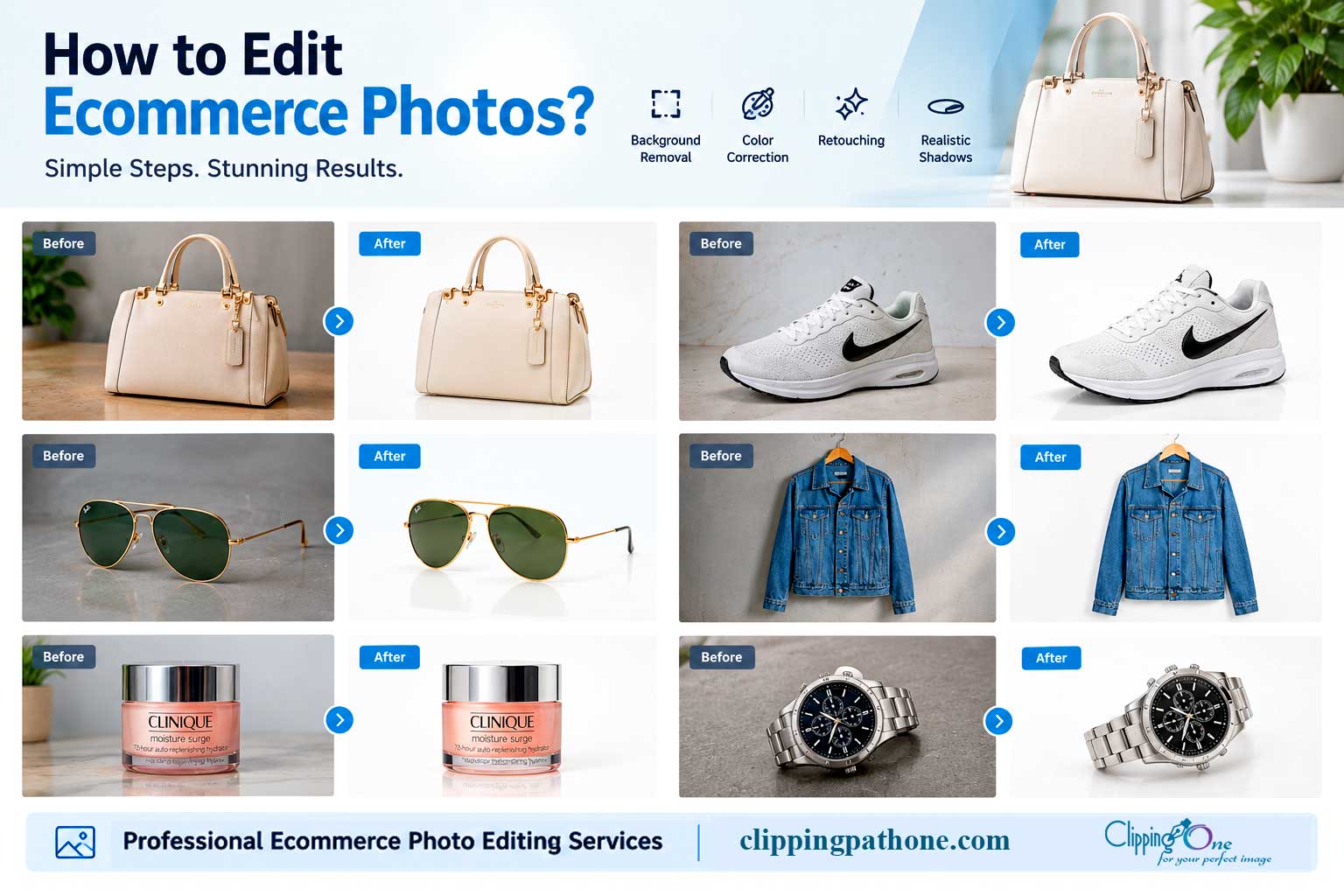
Depending on your project requirements, a professional workflow can include background removal, clipping paths, color correction, image cleanup, garment retouching, and preparation of product images for online publishing.
For clothing brands, photography studios, and online retailers, the objective is to produce images that are clean, consistent, and faithful to the actual product.
If your team is spending too much time manually editing product photographs, explore the Clipping Path One E-commerce Image Editing Service to learn more about possible solutions.
Before starting a larger project, provide a representative sample batch and specify your preferred background, crop, color requirements, shadow style, output dimensions, and delivery format. Reviewing a sample helps establish expectations before processing the entire collection.
Common Mistakes to Avoid When Editing Clothing Photos
Even experienced editors can make mistakes that reduce product image quality. Watch for these common issues.
Over-smoothing fabric: Removing every fold can make garments look artificial. Preserve natural texture and construction details.
Changing the real product color: Heavy filters and inaccurate color replacement may mislead customers. Keep product photographs faithful to the actual garment.
Creating rough background edges: Automated cutouts can leave halos or remove fine fabric details. Inspect edges carefully.
Using inconsistent lighting: A collection with mismatched brightness and color temperature can look unprofessional. Apply a consistent editing standard.
Overusing AI generation: AI may invent seams, alter patterns, or change garment proportions. Verify that the final image represents the actual item.
Ignoring marketplace rules: Each platform may have different requirements for main images, backgrounds, file sizes, and promotional graphics. Check the latest official guidelines.
Exporting unnecessarily large files: High resolution is valuable, but oversized files can slow pages. Use appropriate dimensions and compression while preserving visible detail.
Skipping final quality control: A small color mismatch or edge artifact may be repeated across a whole batch. Inspect sample images and establish a clear approval process.
Frequently Asked Questions About Clothing Photo Editing Apps
What is the best app for editing clothing photos?
Adobe Photoshop is an excellent overall choice for detailed clothing photo editing, including background removal, retouching, color adjustments, and fabric cleanup. Lightroom is strong for color correction and batch processing, while Snapseed is a useful free mobile option. The best app depends on your editing needs, budget, and image volume.
What is the best free app for editing clothing photos?
Snapseed is a good starting point for free mobile editing, offering exposure adjustments, selective corrections, healing, and detail controls. If you need advanced background removal, complex garment masking, or professional batch processing, you may need additional software.
Which app is best for removing backgrounds from clothing photos?
Photoshop provides detailed selection and masking controls, while Remove.bg and similar tools offer convenient automated cutouts. Canva can be useful when you also need to create promotional designs. Complex garments often benefit from manual edge refinement.
How can I remove wrinkles from clothes in a photo?
Use a retouching tool such as Photoshop’s healing or cloning tools to reduce distracting creases selectively. Preserve fabric texture, seams, and natural folds. For simple social media images, a mobile editor with suitable healing features may be sufficient.
Can I change the color of clothes in a photo?
Yes. Photoshop and other editors with selective color adjustments can recolor garments while retaining much of their original shading and texture. Check the result carefully, particularly if you are preparing images for actual product listings.
Which app is best for editing clothing photos for e-commerce?
For a small store, Lightroom combined with a background-removal tool may be sufficient. For detailed commercial work, Photoshop offers more control. Large catalogs may benefit from batch processing and a standardized quality-control workflow.
Is Photoshop better than Lightroom for clothing photos?
Photoshop is generally better for detailed masking, object removal, and complex retouching. Lightroom is generally better for organizing photographs, correcting colors, and applying consistent adjustments across batches. Many professional workflows use both.
Can I edit clothing photos on my phone?
Yes. Lightroom Mobile, Snapseed, VSCO, Picsart, and other smartphone editors can handle many everyday clothing photo edits. Desktop software is often more practical for intricate retouching and large production volumes.
What is the best app for changing outfits in pictures using AI?
The best choice depends on whether you want a personal styling preview, a virtual try-on experience, or a commercial fashion visualization. Compare current tools for image quality, privacy, garment accuracy, and export options. AI-generated results should not be treated as proof of a real product’s appearance or fit.
How do I make clothing product photos look professional?
Start with good lighting and a clean original photograph. Correct white balance and exposure, remove distracting backgrounds, retouch imperfections carefully, preserve fabric texture, and use consistent crops and export settings. Review the final images at both full size and normal viewing size.
What image format is best for clothing product photos?
JPEG is commonly suitable for finished product photographs because it balances visual quality and file size. PNG is useful when you need a transparent background. Follow the relevant platform’s current format, size, and image-quality requirements.
Should I use AI or manual editing for clothing product images?
AI tools can accelerate repetitive tasks, including basic background removal and selected image adjustments. Manual editing offers more control over complicated edges, fabric texture, and color accuracy. A combination of both is often practical, provided every final image receives appropriate quality control.
Can professional image editing help an online clothing store?
Professional editing can improve visual consistency, reduce distracting imperfections, and free internal teams from repetitive post-production work. Whether outsourcing makes financial sense depends on image volume, complexity, turnaround requirements, and the cost of managing editing in-house.
How can I edit hundreds of clothing photos consistently?
Use a standardized workflow with batch color adjustments, repeatable background and cropping rules, clear export presets, and quality-control checks. Reserve individual retouching for images that need additional attention. For very large collections, compare the cost of in-house processing with professional outsourcing.